
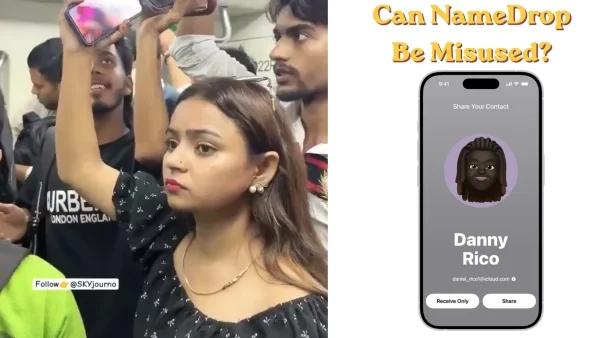
The post has set off a debate after a video put forward the story of a young man who, while on a metro, made off with a woman’s contact info by way of the NameDrop function.
So the story goes, he held his iPhone up to hers to set off a prompt. Then, before she could put two and two together, he is said to have given her phone a subtle tap to make good on the request and get her details.
It leaves you to wonder if folks are as mindful as they should be of the kind of pop-ups that can show up on a screen in a busy place.
Then again, no one can say for sure what happened. Some have pushed back in the comments, pointing out that with NameDrop you have to give the OK on your end first. If so, the transfer doesn’t just happen on its own. You can’t tell from the video if it was a case of the feature being misused or if the other party simply let it through by mistake.
Still, it is a good nudge to be more present with your phone in public, be it on a bus or at a train station, where there is always the possibility of someone making a move on your device when you are not looking.
How to Stay Safe
When you are in a crowd, hold onto your phone or put it in your pocket. Be on the lookout for any odd prompts and don’t give in to them unless you put them there. Know how NameDrop is supposed to work. Lock the device if you are not with it. Should you think your info was put out there without your say-so, check your settings and, if you have to, put in a report. It is all part of being in the know about what is on your screen and in your environment before you let anything go through.
Turn off NameDrop on iPhone
You will find it is on to begin with. To put an end to it, head to Settings, then General and AirDrop, and switch off Bring Devices Together.